
Quick Start#
Diagram#
See the following diagram for a quick overview of the credential generation process:
![digraph G {
CredentialType [shape=box, color="black", label="Credential Type\n\nProvides reusable configuration by storing the:\n- retrieval function\n- generation function\n- custom options"]
CredentialConfiguration [shape=box, color="black", label="Credential Configuration\n\n1. Stores option overrides.\n2. Defines custom schedules for credential generation."]
RetrievalFunc [shape=ellipse, color="blue", label="retrieval_func\n\nA function that retrieves information\n about learners eligible for the credential.\nIt defines the criteria for getting a credential."]
GenerationFunc [shape=ellipse, color="blue", label="generation_func\n\nA function that defines how the credential\ngeneration process looks like\n(e.g., it creates a PDF file)."]
Credential [shape=box, color="black", label="Credential\n\nThe generated credential."]
CredentialConfiguration -> RetrievalFunc [label="runs"]
RetrievalFunc -> GenerationFunc [label="sends data to"]
CredentialType -> CredentialConfiguration [label="provides default options"]
GenerationFunc -> Credential [label="generates"]
}](../_images/graphviz-8beb680831255a361ab6a37c6897460cb6941e81.png)
Preparations#
Go to
Django admin -> learning_credentials.Go to the
External credential assetssection and add your credential template. You should also add all the assets that are used in the template (images, fonts, etc.).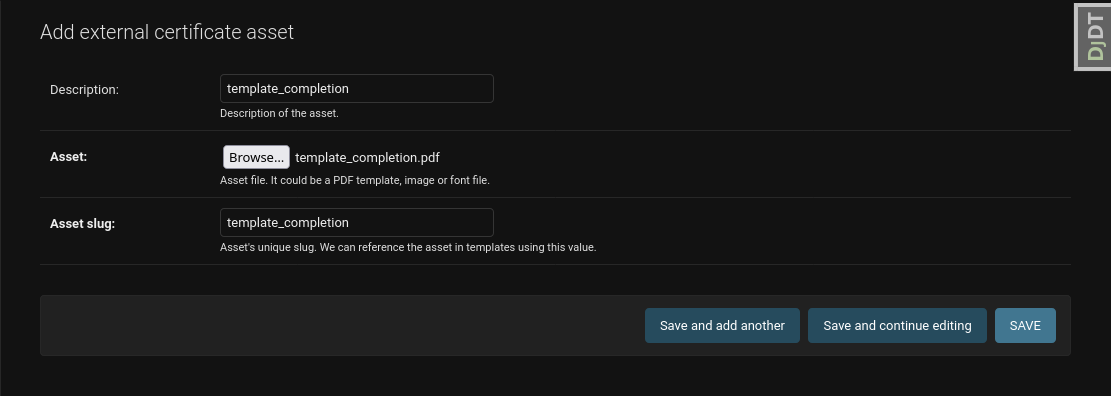
Create a new credential type in the
External credential typessection. Credential types are reusable and can be used for multiple courses. Example of creating a credential type.To create a credential of completion, use the
retrieve_course_completionsretrieval function. Ignore the “Custom options” for now. Click the “Save and continue editing” button instead. You will see the description of all optional parameters here.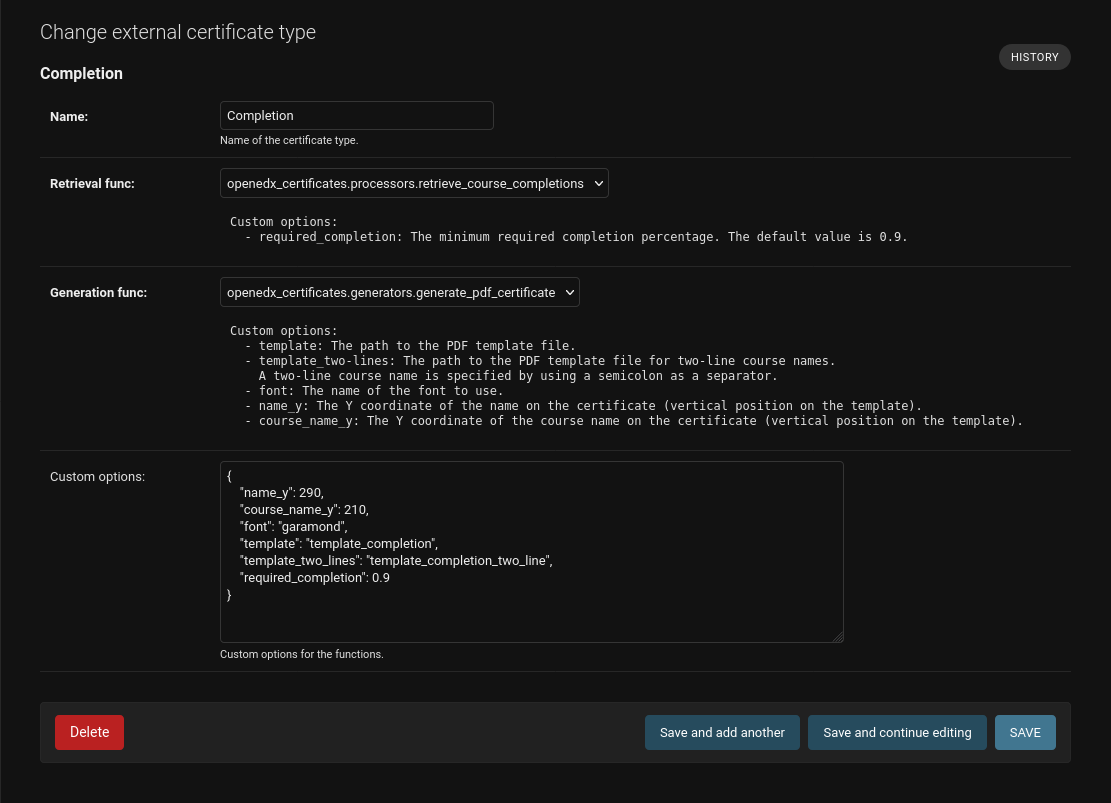
You can add a custom option to specify the minimum completion required to receive the credential. For example, if you want to issue a credential only to students who achieved a completion of 80% or higher, you can add a custom option with the name
required_completionand the value0.8.To create a credential of achievement, use the
retrieve_subsection_grades. The process is similar to the one described above. The customization options for minimum grade are a bit more complex, so make sure to read the description of the retrieval function. The generation function options are identical to the ones for the credential of completion.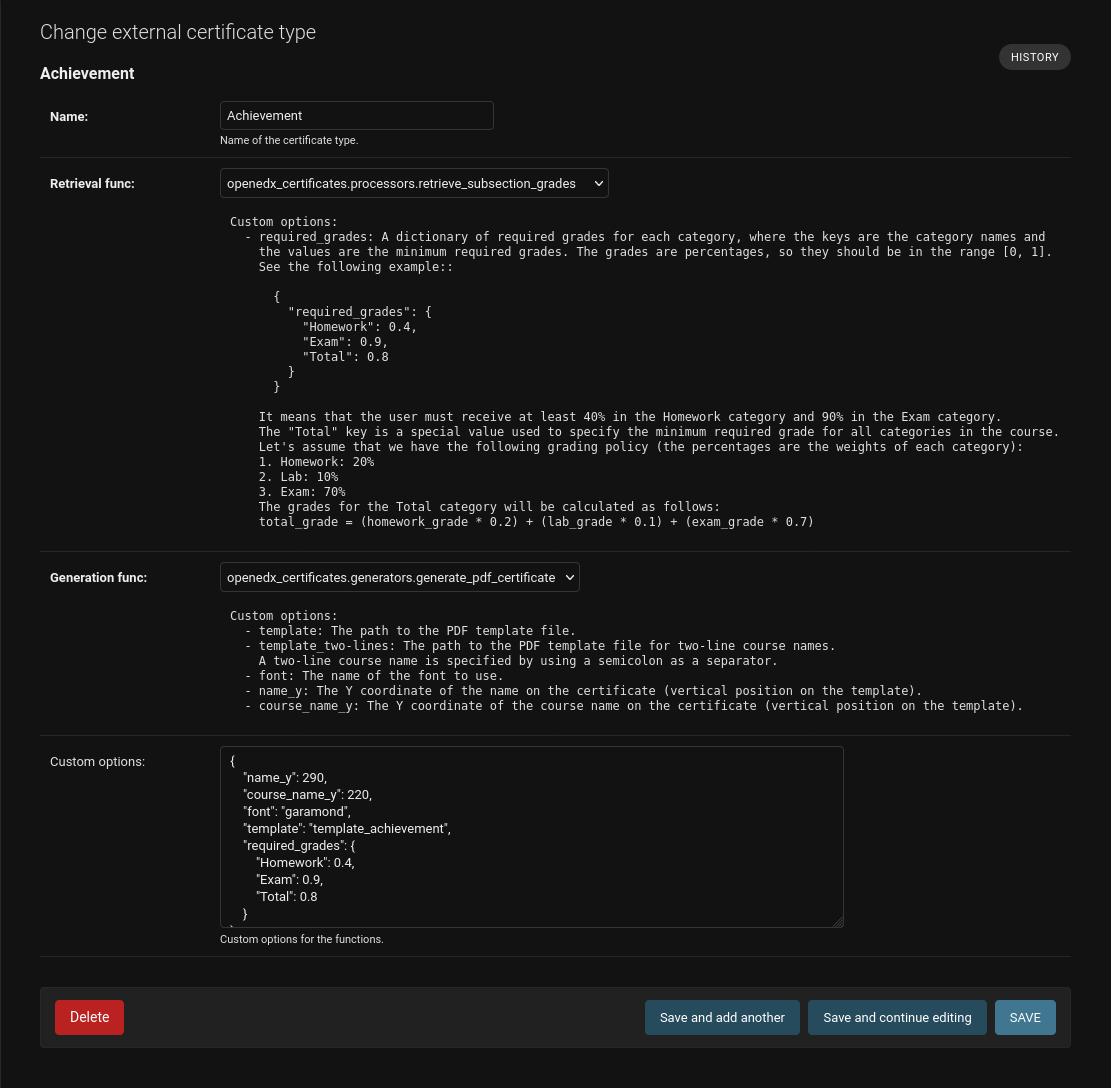
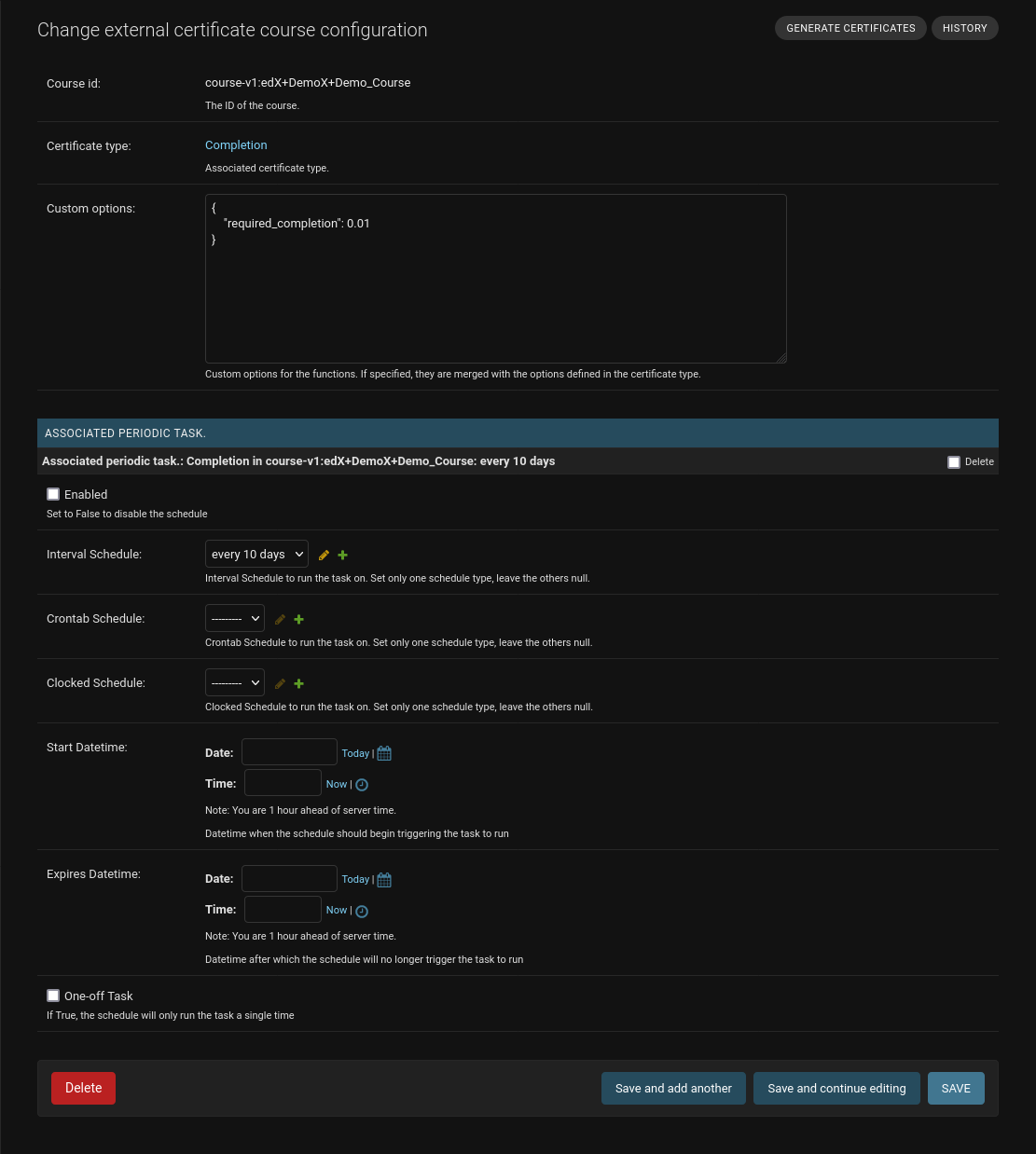
Configure the credential type for a course in the
External credentials
configurations
section. You can also specify the custom options here to override the ones specified in the credential type. For example, you can specify a different minimum completion for a specific course. Or, you can use a different credential template for a specific course.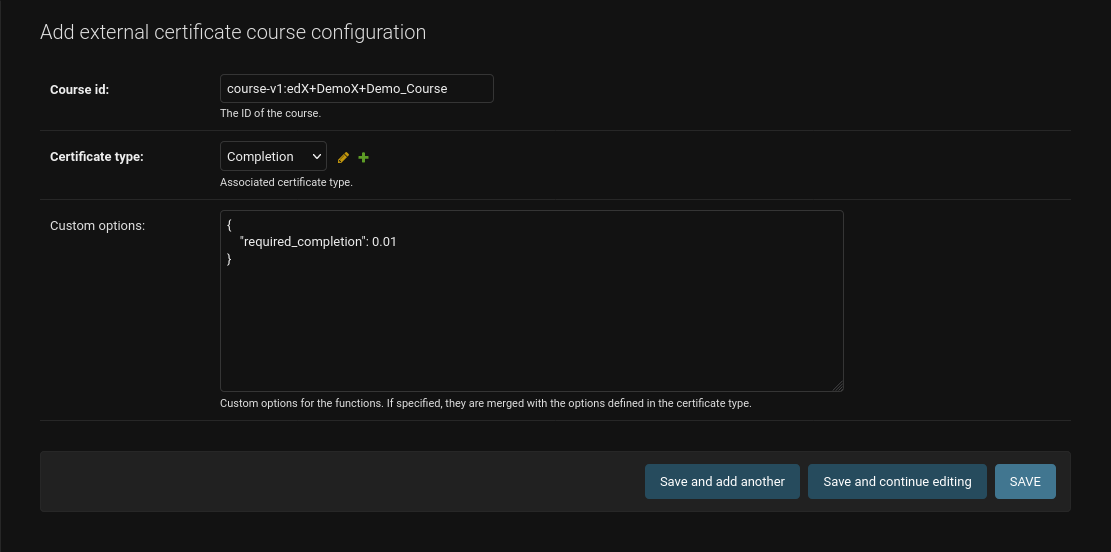
Once you press the “Save and continue editing” button, you will see the “Generate credentials” button. Press it to generate credentials for all students who meet the requirements.
You can also create a scheduled task to generate credentials automatically. On the course configuration page, you will see the “Associated periodic tasks” section. Here, you can set a custom schedule for generating credentials.
Invalidation and Reissuing#
Credentials can be invalidated and reissued through the Django admin:
Navigate to
Django admin -> learning_credentials -> External credentials.Select an existing credential.
To reissue a credential (e.g., after a name change), click the Reissue credential button. This will:
Invalidate the current credential (move the PDF to an archive and mark it as invalidated).
Generate a new credential with updated information.
Link the new credential back to the same configuration.
To invalidate a credential without reissuing, set the
Invalidation reasonfield and save. The credential status will change toINVALIDATEDand the PDF will be archived.
Note
Invalidated credentials are not deleted. The PDF is moved to an archive location and set to private access. The credential metadata remains accessible via the verification API for audit purposes.